How to Colour Correct GoPro Footage Free in Your Browser
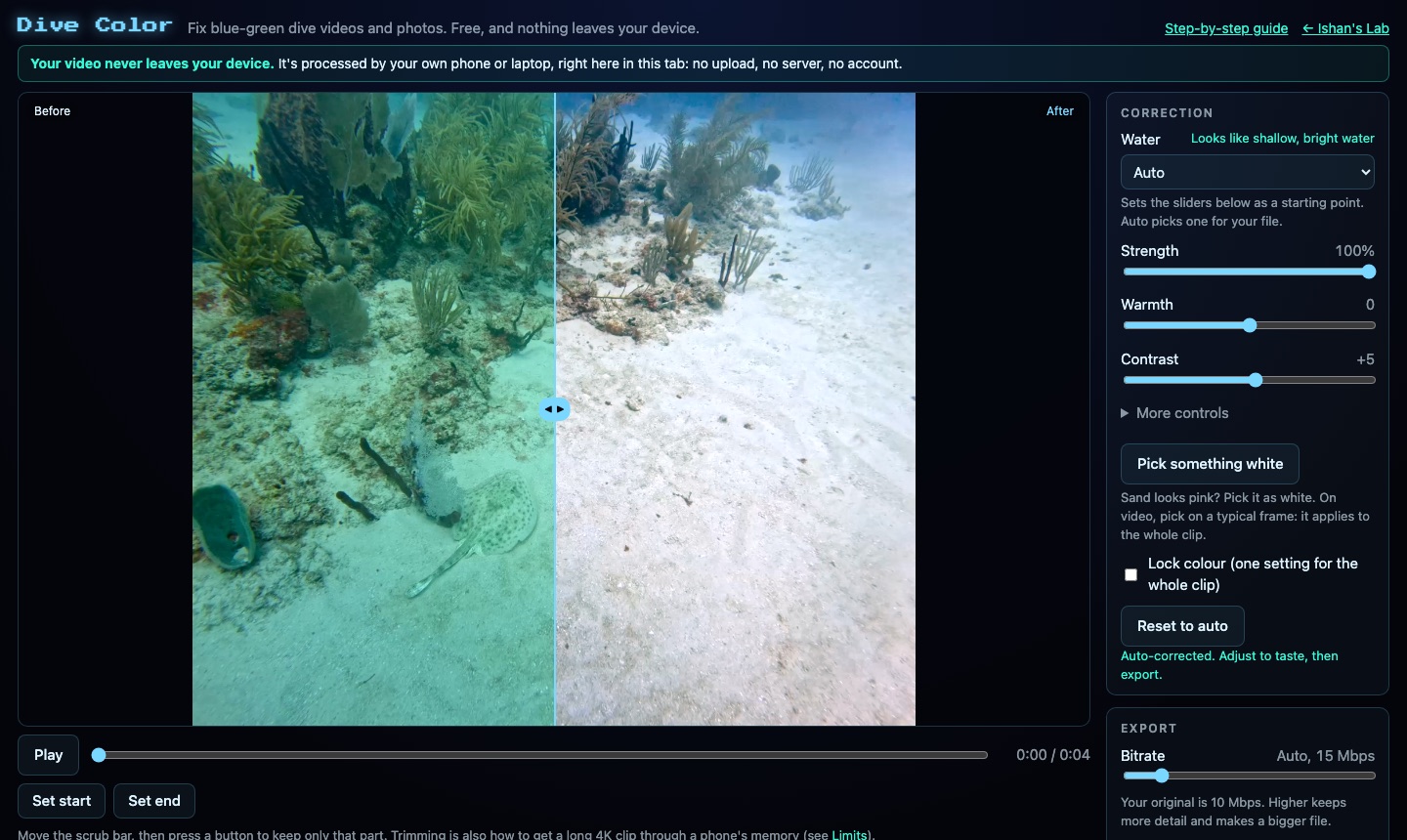
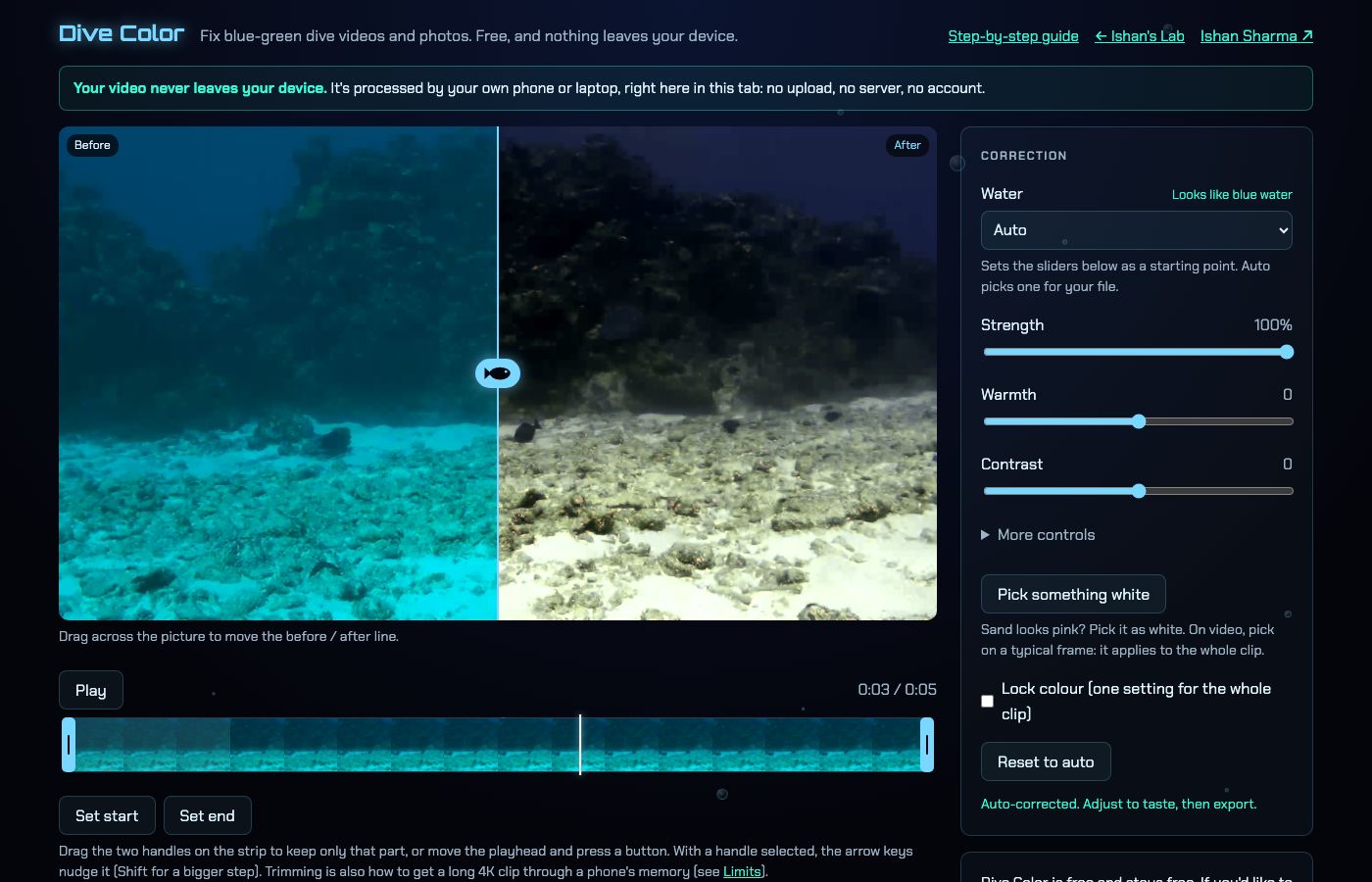
GoPro footage shot underwater looks blue or green because water absorbs red light first, and the camera records what is left. You can colour correct GoPro footage free in a browser tab with Dive Color, with nothing to install and nothing to upload. The file is read on your own device and the corrected copy is saved as a download. Speed is the catch on long 4K clips, and the details for that are further down.
Try Dive Color
 Open Dive Color, free in your browser
Why does my GoPro footage look blue or green?
Red goes first as you descend, so open water ends up blue. Lakes, fjords and quarries lean green instead. A shallow clip in clear water needs only a gentle push, while a deep one has lost most of its red before the light reaches the lens.
I wrote about the cause in more detail in Why Is My Underwater Video Blue? And How to Fix It.
Where does a free browser tool fit in?
Dive Color is a free underwater colour-correction tool I made for my own dive clips. It works in three stages:
- Red compensation adds back the red the water absorbed, using a method from Ancuti et al. 2018, and it only ever adds red.
- Gray-world white balance scales red, green and blue so their averages match, with limits so it cannot go wild.
- Levels lift the haze, using one shared white point so deep-blue shots do not turn purple.
It is plain maths, not AI. The page samples the clip about twice a second and smooths the readings, so the colour follows depth changes without flicker. A Lock colour option uses one setting for the whole clip instead.
It will not rescue a shot with no red left in it, and iPhone HDR clips export in standard range.
How do I colour correct GoPro footage free, step by step?
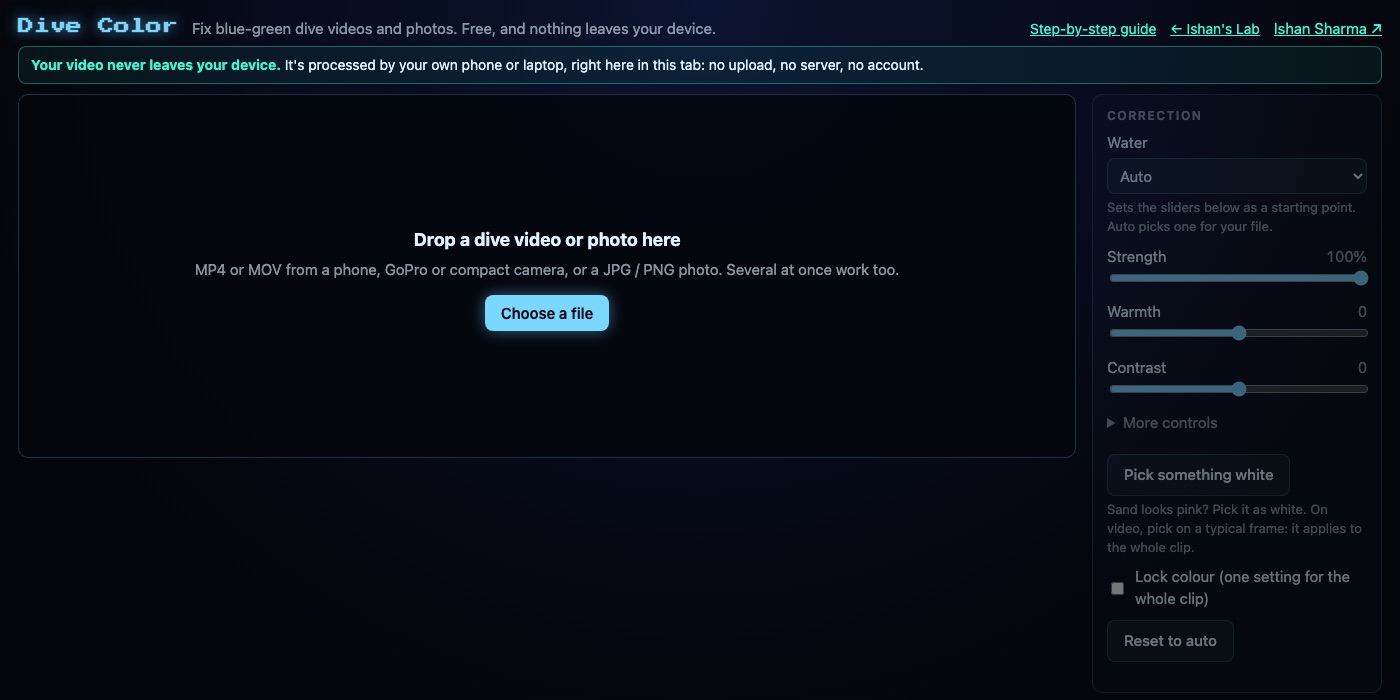
- Drop your clip onto the picture, or press Choose a file. MP4 and MOV work. Several files can go in at once, and a file that cannot be opened says why while the rest carry on.
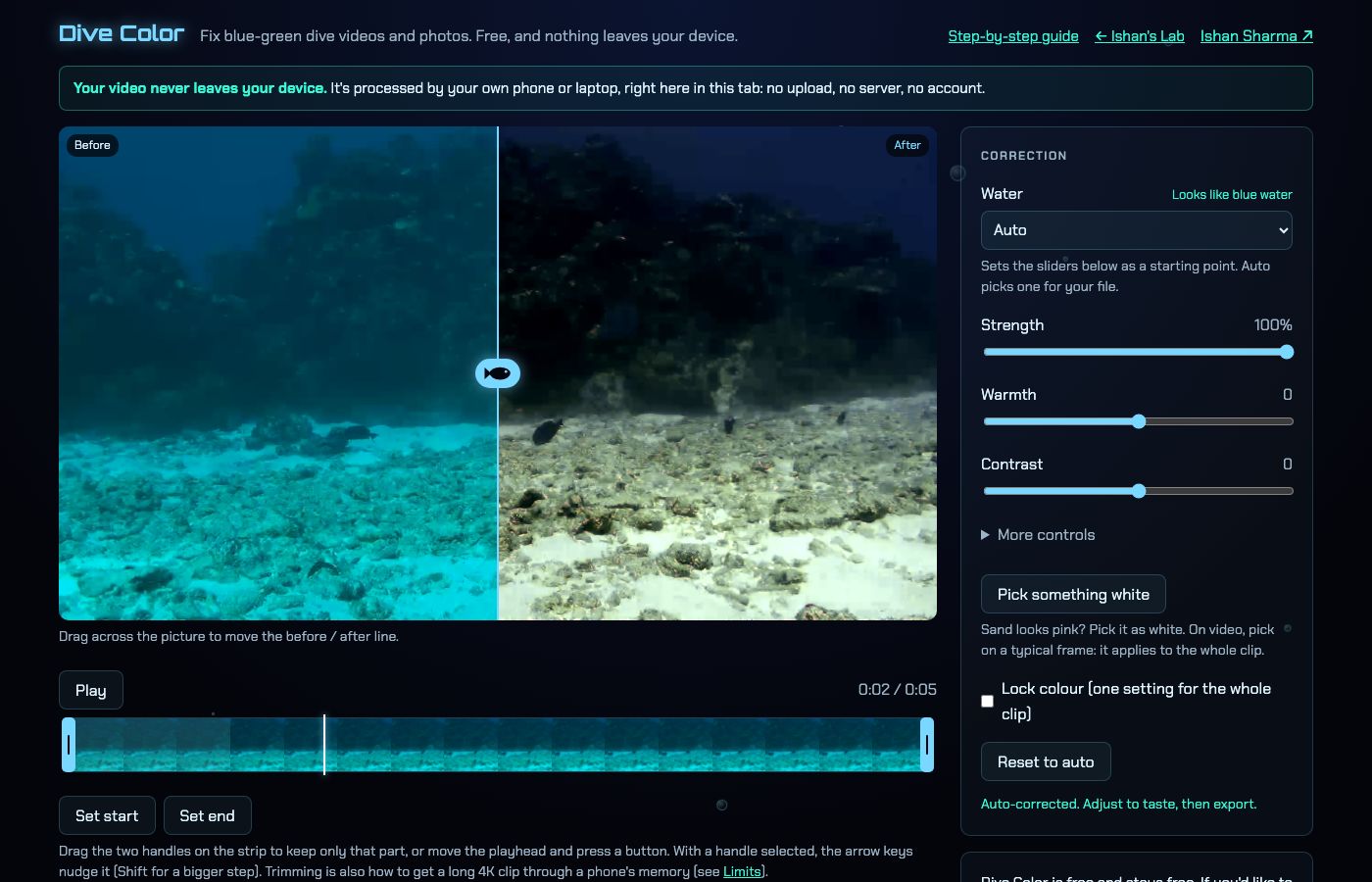
- Drag across the picture to move the comparison line. The original sits on the left of it and the corrected picture on the right. Water type is chosen automatically from the average colour and brightness, and you can change it if the guess is wrong.
- Adjust only if you need to. I usually stop at the automatic result. Strength, Warmth and Contrast are on the main panel, with Saturation, Red recovery, Tint and Clear the haze under More controls. Slide Tint right to take green out of a lake.
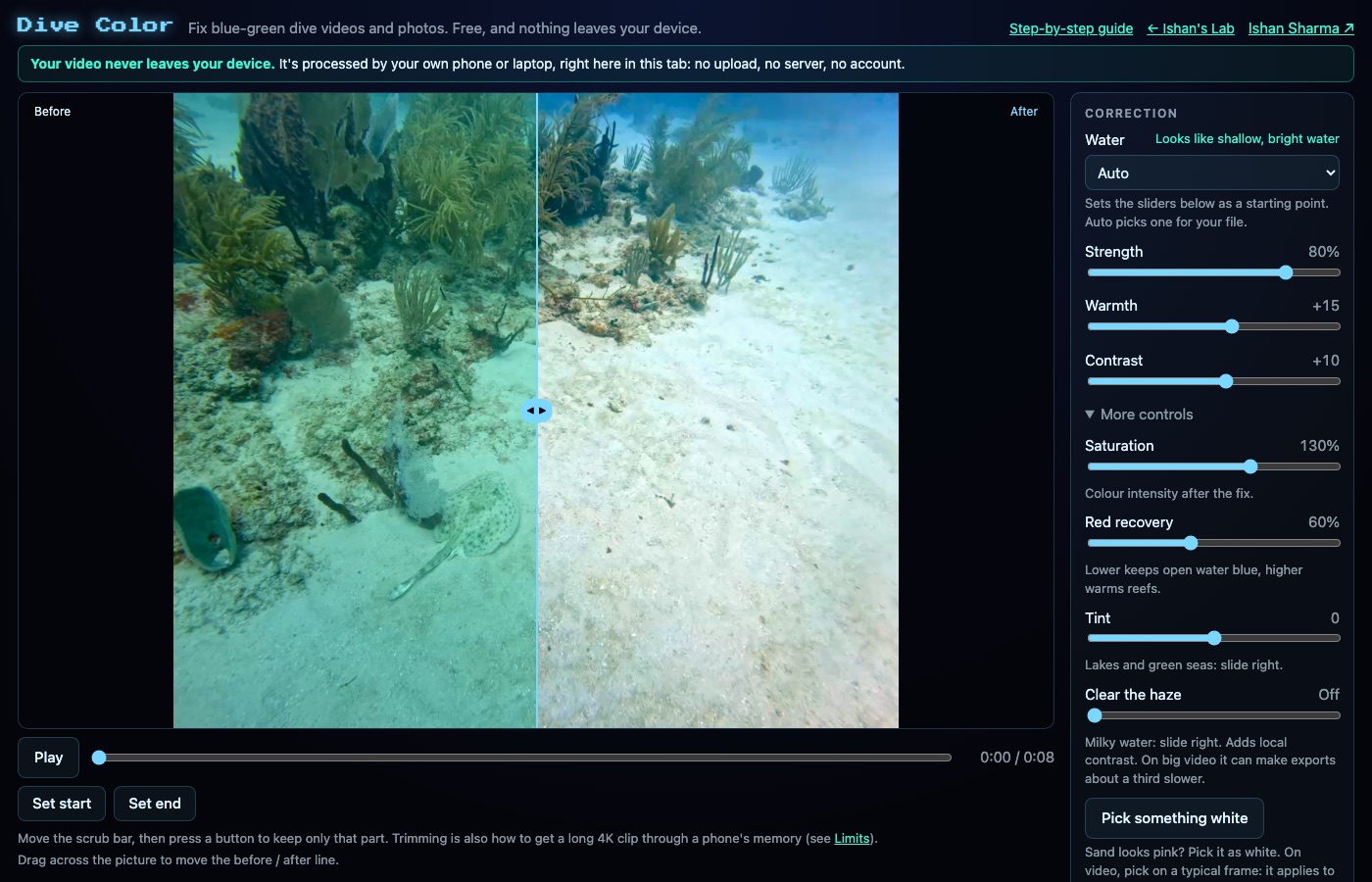
- Fix a stubborn cast with Pick something white, then tap sand or a white object. The change is limited so a bad tap cannot wreck the picture. On video it uses the current frame and applies the same change to the whole clip.
- Trim before you export. Drag the two handles on the filmstrip, and only the kept part is exported. Then choose the export route and bitrate. Show can be set to Before and after if you want the split line burned into the file.
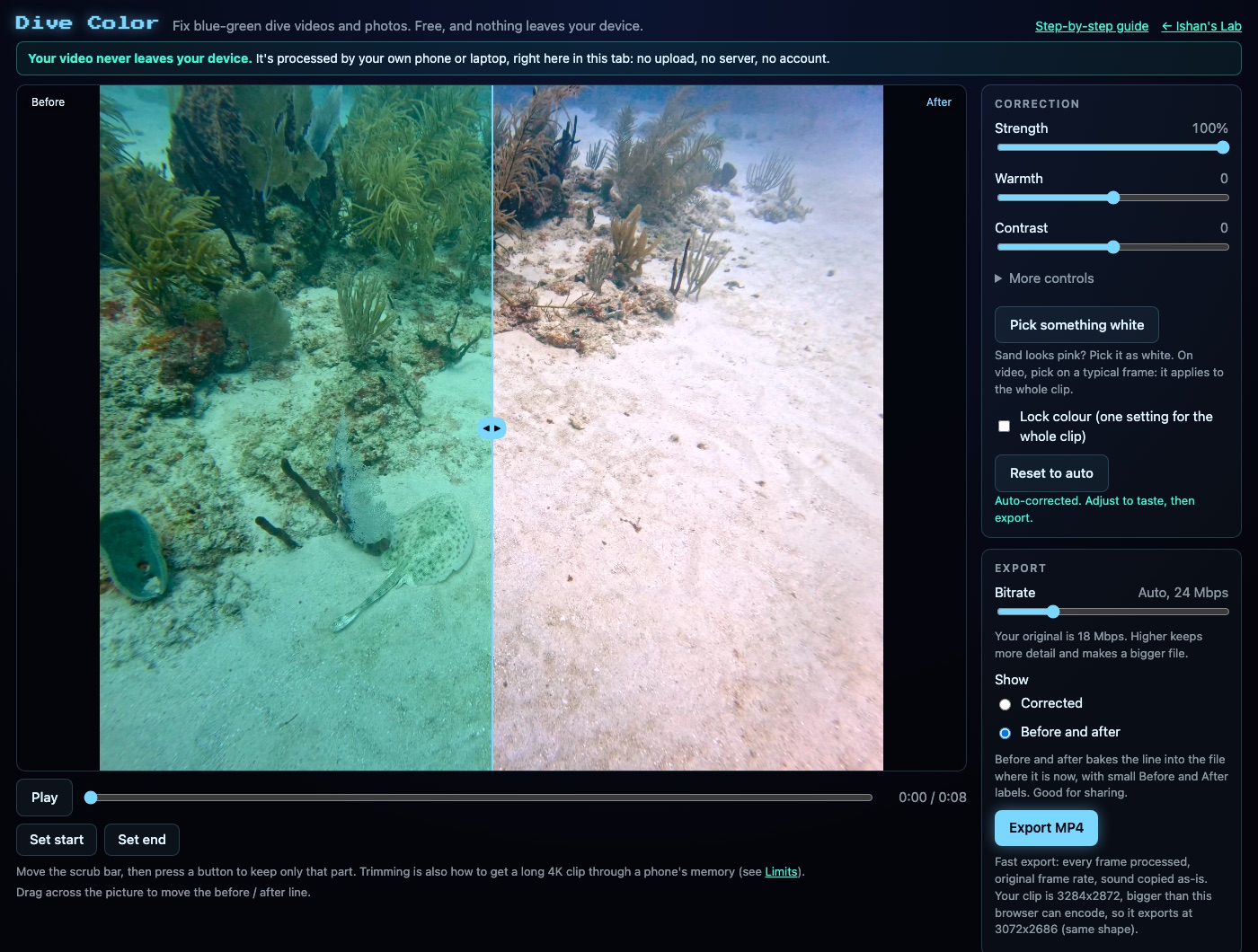
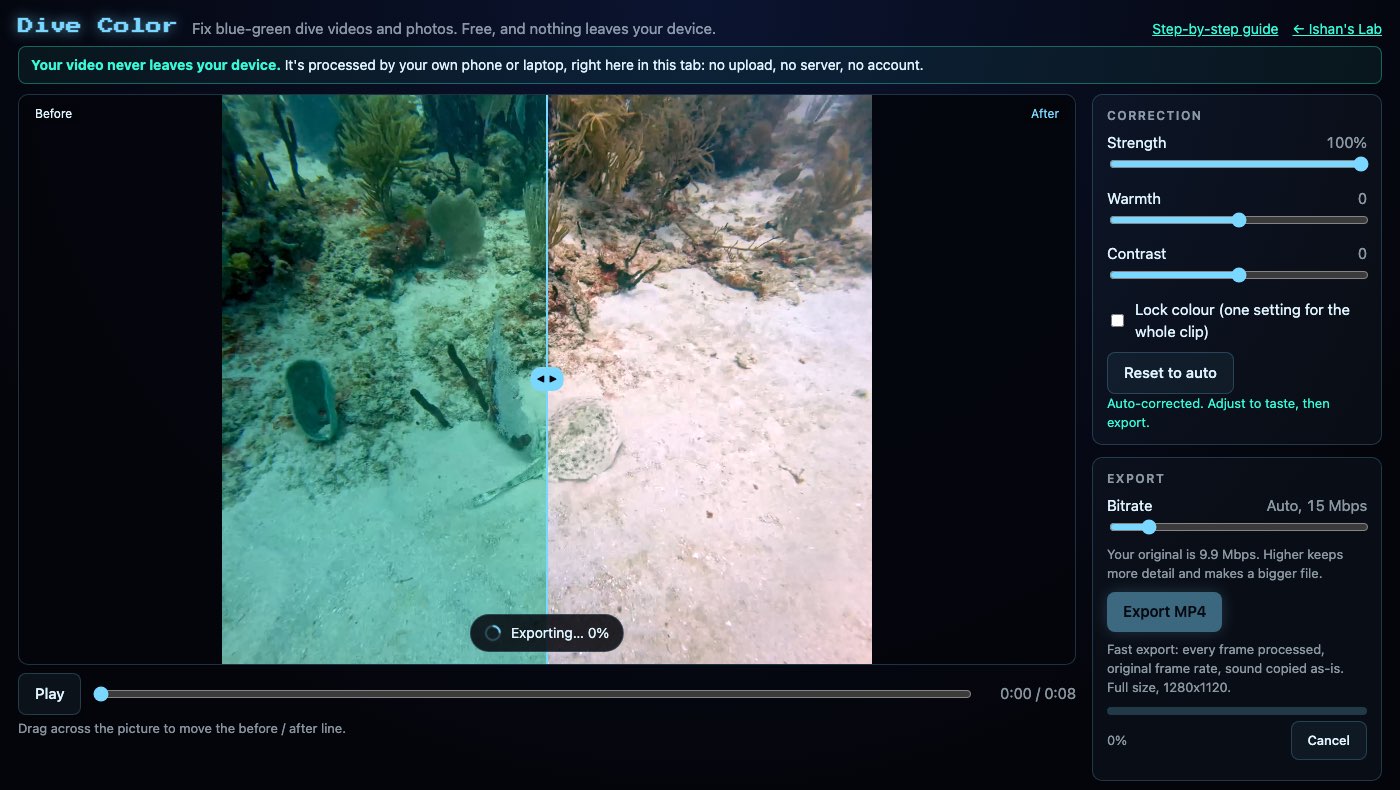
- Press export and wait. A progress bar and a rough time left appear, and Cancel stops it. Keep the tab open until it finishes.
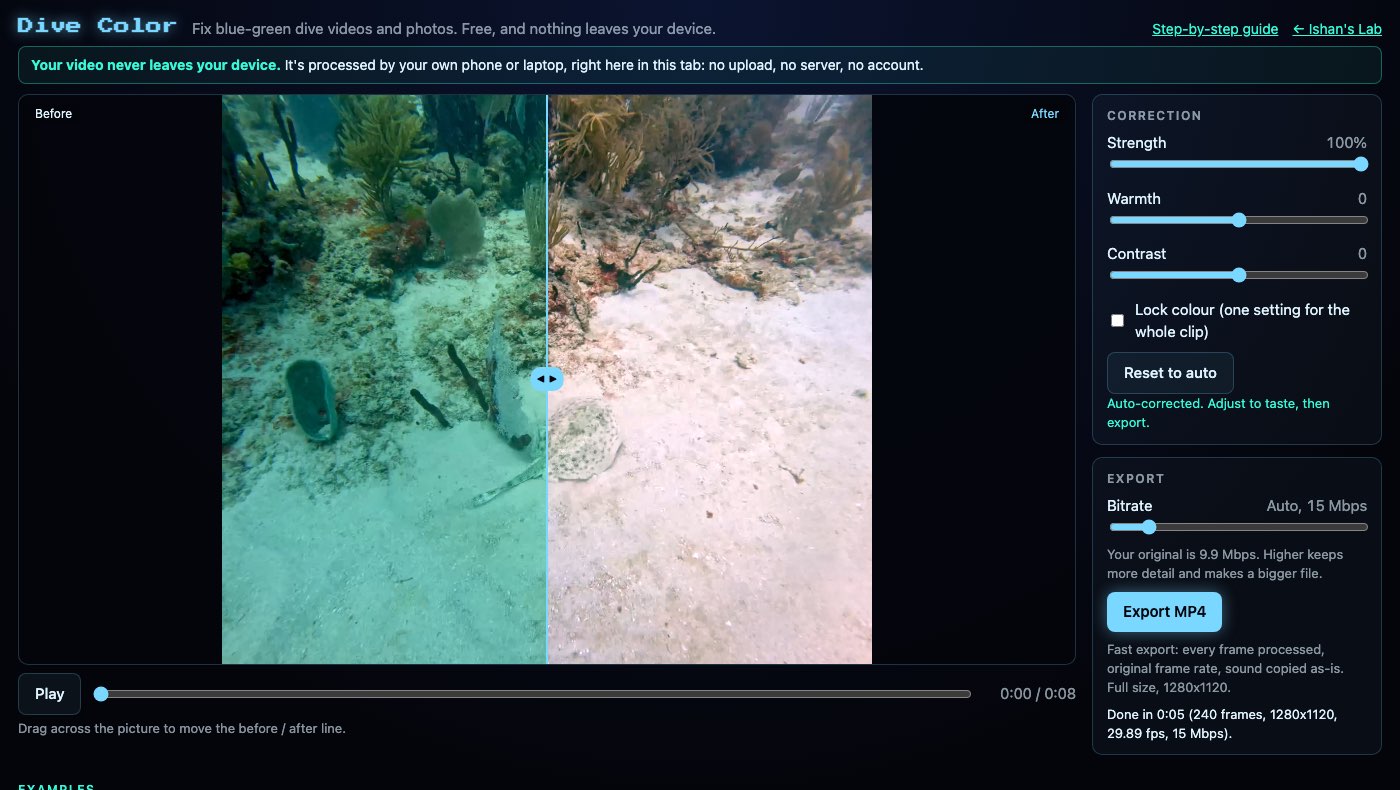
- The file downloads with -divecolor added to its name. On a phone, tap Save to Photos and choose Save Video.
How slow is it on long 4K clips?
Speed depends on your device, and phones are the slowest. A long 4K clip is where it shows.
There are two routes, and a line under the export button tells you which one you get:
- Fast export processes every frame at the original frame rate and copies the sound across.
- Real-time export is used when the browser cannot encode directly. The clip plays through once at normal speed while it records, so the wait is about as long as the clip, and the tab has to stay in front.
Audio that is not AAC or Opus cannot be copied across, so those clips take the real-time route too.
Trimming helps most. A phone has limited memory, and exporting only the part you want gets a long 4K clip through where the whole file might not.
A GoPro 5.3K frame may export at a smaller size, for example 4096x3584 HEVC in Chrome on a Mac. The page states the size before you export, so you can check it first.
Preview files (.LRV and .THM) and 360 files are not supported. Use the full-size MP4 from the card instead.
Can I do a whole folder of clips?
Drop them all at once. Each file keeps its own correction, trim, white point and water type, while sliders and bitrate apply to all of them. Export all becomes available when every file has been read. In Chrome and Edge it asks for a folder once and writes each file into it, and other computers download each file as it finishes.