How to Turn Your Webcam Into Live ASCII Art
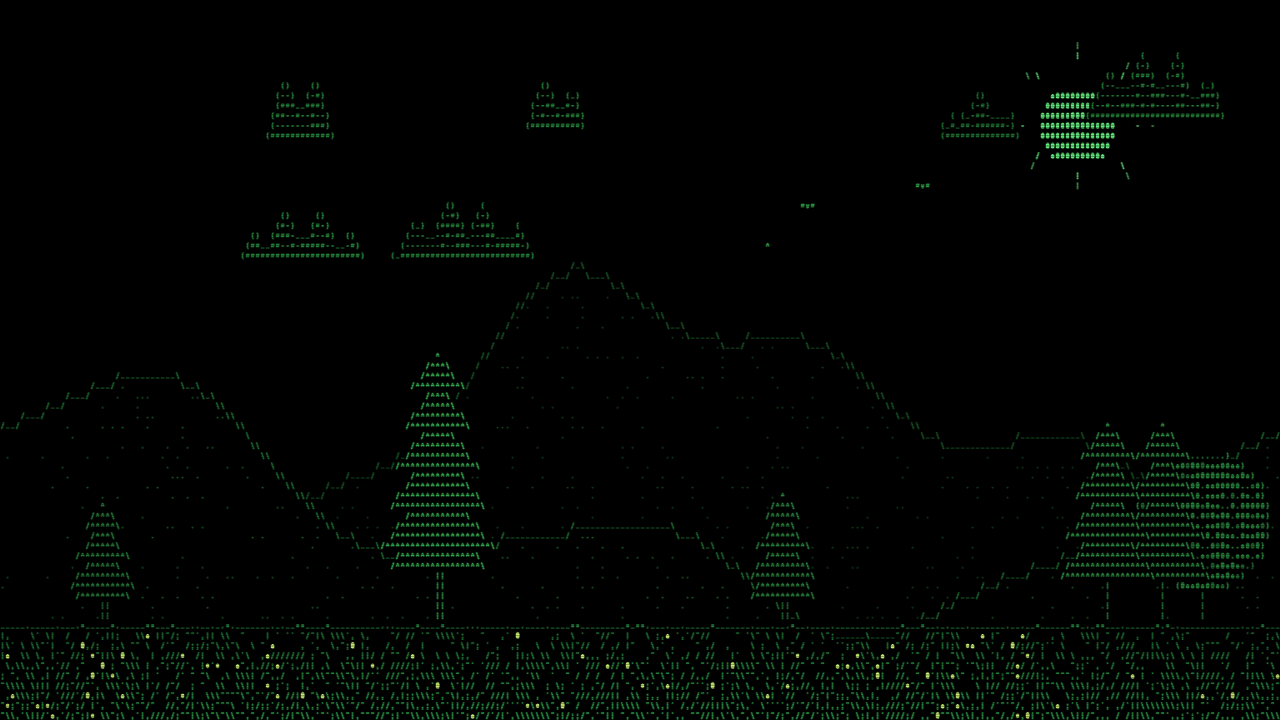
To turn your webcam into live ASCII art you need three things: a browser that can read the camera, something that separates you from the background, and a renderer that draws characters instead of pixels. ASCII World does all three in one page, so you open it, allow the camera and see yourself as text within a few seconds. The background is a world of text too, with a sun, clouds, trees and grass, and you can switch the style of your own figure with a finger snap.
Try ASCII World
 Open ASCII World, free in your browser
This guide walks through how the effect works, how to get a good silhouette, and how to record one continuous take for a music video or a reel.
How does live ASCII art from a webcam work?
Classic ASCII filters take every small block of the picture, measure how bright it is, and print a character whose ink matches that brightness. A dark block becomes a dot or a colon, a bright one becomes a hash or an at sign. Apply that to every block of a camera frame and you get the familiar typewriter portrait.
The problem with doing that to a whole frame is that the room behind you turns into noise. A wall, a bookshelf and your face all get the same treatment, so the figure gets lost. ASCII World avoids that by finding you first. It runs a pose model in the browser that outputs a person mask, a filled shape covering your hair, clothes and arms. Only the cells inside that shape are drawn from the camera. Everything outside it is drawn from a generated scene, so you stand in a field of text rather than in a blur of characters.
Setting up the shot
- Open ASCII World in a desktop browser and press start. The page asks for camera access; allow it.
- Stand far enough back that your head and shoulders are clear of the frame edges. A hint at the bottom of the screen tells you if no person is detected.
- Put a plain light behind you if you can. The mask is a model prediction, and strong contrast between you and the wall gives cleaner edges.
- Use the DENSITY slider to set the character size. Fewer rows gives big chunky letters that read well on a phone screen; more rows gives a finer picture for a full-size video.
The world itself is generated from a seed, so the layout of trees and hills is the same each time you load the page. RESEED WORLD gives you a new arrangement, and the DRIFT slider makes the scene scroll sideways with parallax, hills slowly and grass faster.
Switching looks with a finger snap
Your figure has six looks. The ramp is the classic character set. Stars draws you in asterisks. Digits, letters and blocks swap the text world for the live camera picture behind you, dimmed so the characters stay readable, and binary draws you in ones and zeros on a plain black background.
Turn SNAP on in the panel and the page asks for the microphone. A snap is a short, sharp sound with most of its energy in the high frequencies, and that is what the detector listens for. The level meter under the button shows the microphone level and a tick for the threshold, so you can see whether your snap clears it. Each snap moves to the next look with a short scatter dissolve, where the characters flip over a fraction of a second rather than all at once.
Space, [ and ] do the same from the keyboard, which is useful if music is playing in the room and the microphone cannot pick a snap out of it.
Recording one continuous take
For a music video you usually want the style to keep changing without touching the laptop. Press a or click AUTO, and the page picks a new combination every few seconds: a different look, one of the four colour themes, the background mode, the drift speed, grass on or off, and sometimes a new world layout or character density. The EVERY slider sets the interval from half a second to 20 seconds, so it can flick on every beat or hold a look for a whole phrase.
A snap during an AUTO take still switches the look right away and restarts the countdown, so you can hit changes on the beat and let the automatic cycle fill the gaps.
Pick a shape under CAPTURE first. 9:16 fits reels and vertical music videos, 16:9 fits a normal video, and both lock the picture at full HD whatever size your screen is. Press REC, or the s key, and the stage records to a silent mp4 that downloads when you press it again; add the music in your editor. If you prefer a screen recorder, press h to hide every control and leave only the picture.
Picking a theme
The four themes are on keys 1 to 4, and on a phone the controls fold into a bottom sheet behind the menu button. Terminal is green on black with faint scanlines, the look of an old monitor. Riso uses two green inks on paper with a little grain, matching the risograph filter in the main Hand Scenes app. Amber is the orange phosphor look, and paper is dark ink on cream for a printed feel. The theme changes the world and the figure together, so a snap and a theme key pressed at the same moment gives a complete scene change.
What it will not do
The mask comes from a model running on your own graphics card, so the edges are not pixel perfect and thin things like loose hair strands or fingers held apart can merge or drop out. It traces one person. The recording has no sound, and there is no way to load a video file; it is a live effect for a camera.
If you want the same character ramp on recorded footage rather than a live feed, the ascii and riso filters in Hand Scenes apply the look to the whole frame, and that is the better fit for a clip you have already shot.